
Opening Instagram “for a minute” can easily turn into half an hour of scrolling. App blockers can help, but they solve the problem in very different ways.
Some apps build a strict wall around distractions. Some introduce a delay or breathing exercise. Others coordinate focus sessions across your phone and computer. Marshmallows belongs to a newer category: it creates friction while helping you practice making the decision yourself.
I compared eight strong options available in 2026. The list includes free and paid tools for iPhone, Android, Mac, Windows, and browsers. There is no single winner for everyone, so the recommendations below focus on the type of help each app provides best.
The best app blockers at a glance
| App | Best for | Platforms | Access |
|---|---|---|---|
| ScreenZen | Best free all-rounder | iOS, Android, Mac, Windows | Free, donation-supported |
| Marshmallows | Training willpower | iPhone | Free |
| one sec | Interrupting automatic opens | iOS, Android, browsers | Free and Pro |
| Freedom | Cross-device blocking | iOS, Android, Mac, Windows, Chrome | Free and Premium |
| Jomo | Custom rules on Apple devices | iPhone, iPad, Mac | Free and Jomo Plus |
| AppBlock | Strict schedules and Android control | iOS, Android, browser extensions | Free and Premium |
| Opal | Polished focus gamification | iPhone, Android, Mac | Free and Pro |
| Roots | Guided digital detox | iPhone | Free and Roots Plus |
1
ScreenZen: best free app blocker overall
ScreenZen is the easiest recommendation for someone who wants a powerful app blocker without a subscription. It gives you several ways to add friction before a distracting app opens, including a pause, a breathing prompt, an intention check, or a countdown.
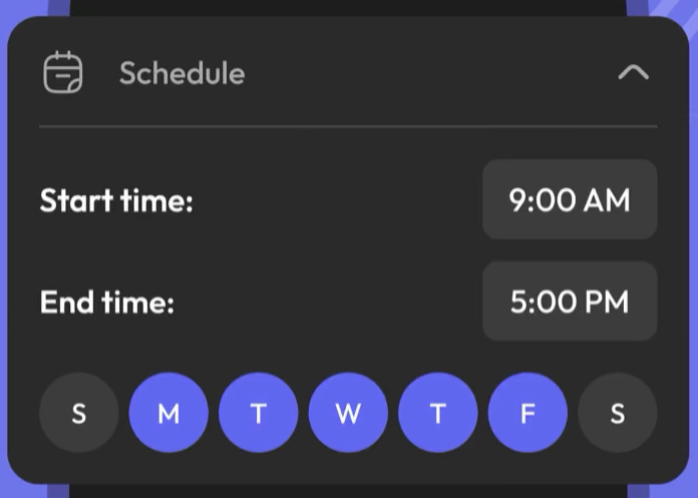
You can limit daily usage, restrict the number of app openings, interrupt long sessions, and build recurring schedules. Lock Mode can make common bypasses and settings changes more difficult. The tradeoff is complexity: ScreenZen offers enough controls that the first setup can feel like configuring a system rather than toggling a single blocker.
Pros
- Free and supported through optional donations
- Broad mobile and desktop availability
- Several types of pauses, limits, and schedules
- Lock Mode helps close common loopholes
Cons
- The large number of settings can feel overwhelming
- Initial configuration takes longer than simpler tools
- Strong bypass protection requires extra setup
Verdict: Start with ScreenZen if you want the most capable free all-rounder and are willing to configure it carefully.
2
Marshmallows: best for training your willpower
Marshmallows takes a deliberately different approach. It does not try to build an unbreakable wall around every tempting app. When you attempt to open a selected app, it creates a pause and lets you decide whether to resist or continue.
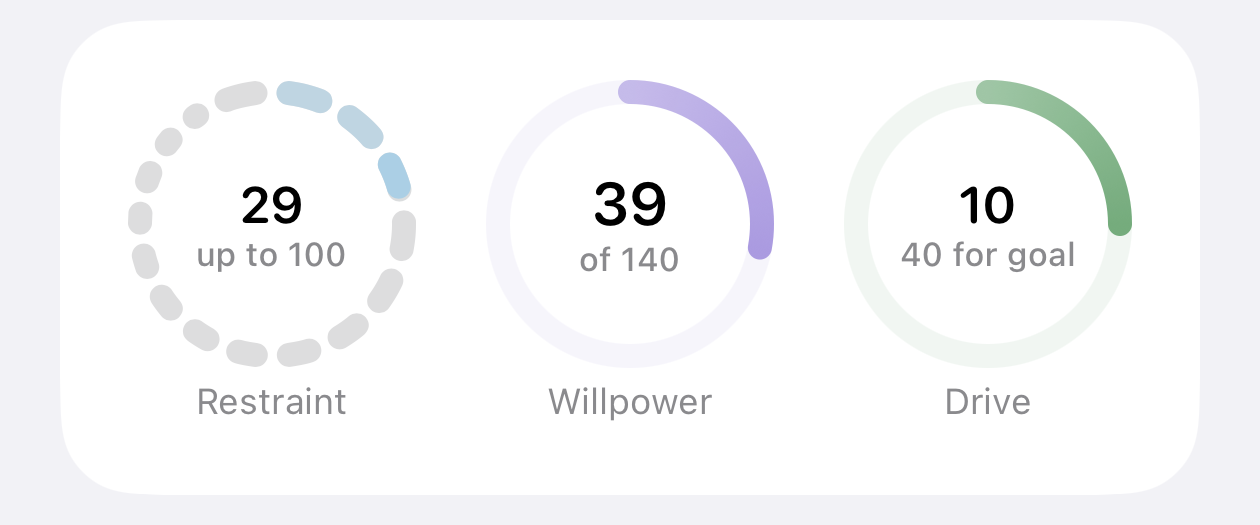
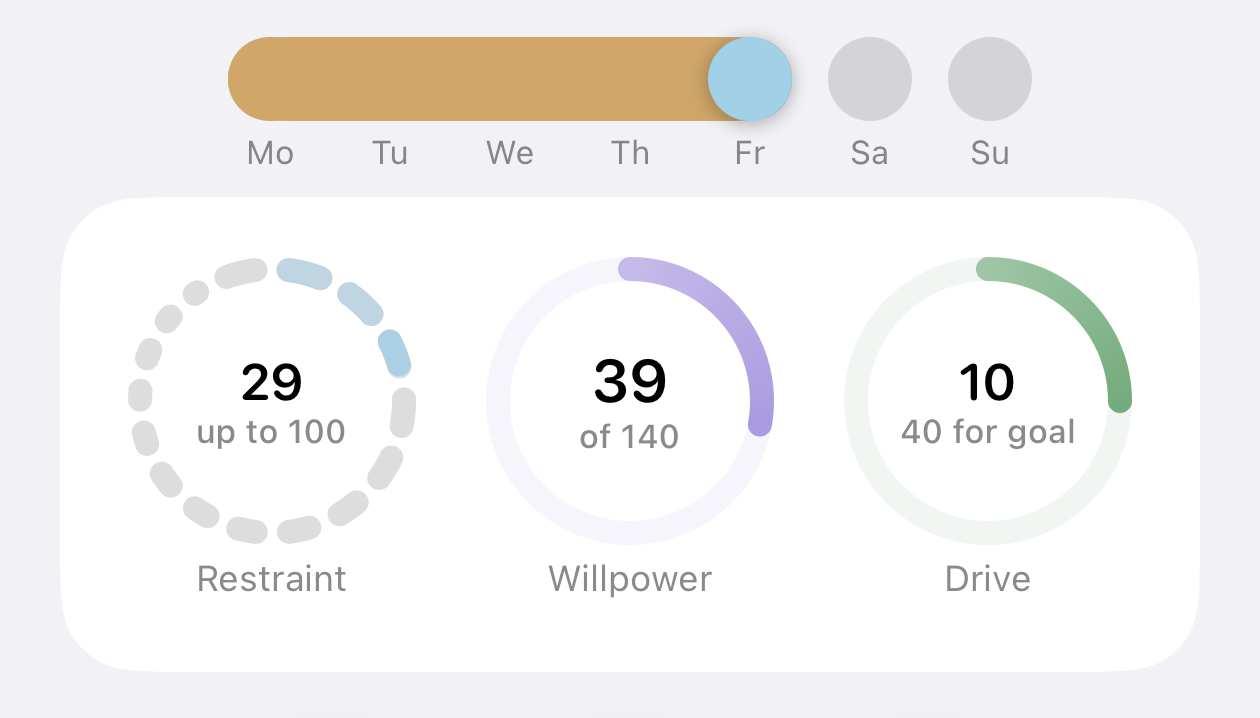
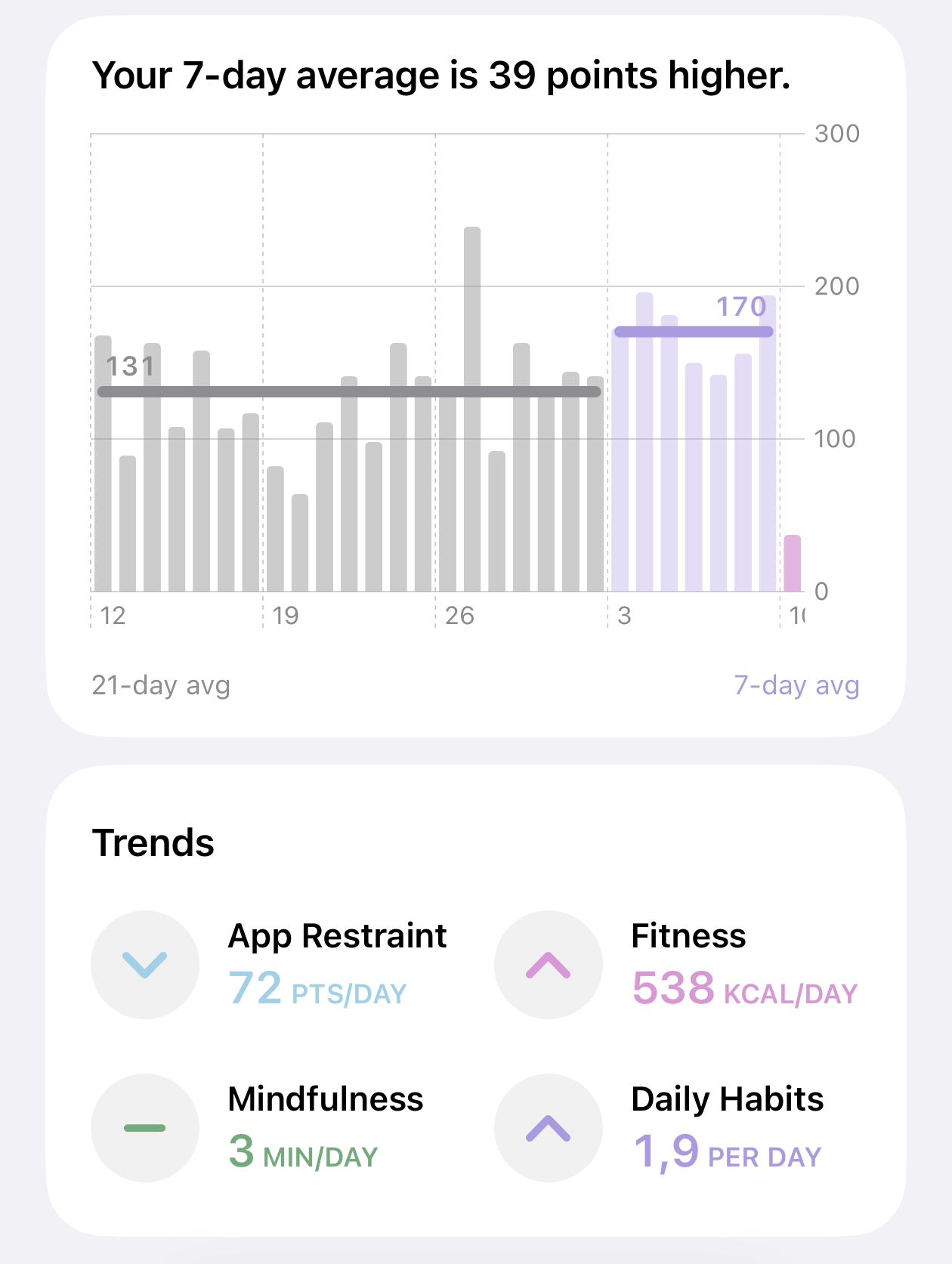
Restraint Points make the time you leave distracting apps alone visible. Drive Points reward constructive actions such as exercise, mindfulness, breathing, and daily goals. Together, they form a daily Willpower score. Weekly goals, history, trends, and widgets make the experience feel closer to a behavior fitness tracker than a traditional lockout tool.
Pros
- Original willpower-training concept
- Preserves choice instead of relying only on hard blocks
- Connects restraint with fitness, mindfulness, and goals
- Free with no advertising, subscription, or paid tier
- Collected analytics are not linked to your identity
Cons
- The score system takes some time to understand
- Fewer rule options than configuration-heavy blockers
- Not suitable if you need an absolute, unbreakable lockout
- Requires iOS 26 and is currently iPhone-only
Verdict: Choose Marshmallows if you keep defeating strict blockers and want to train the decision instead of removing it. I built it for exactly that use case.
3
one sec: best for interrupting automatic app opening
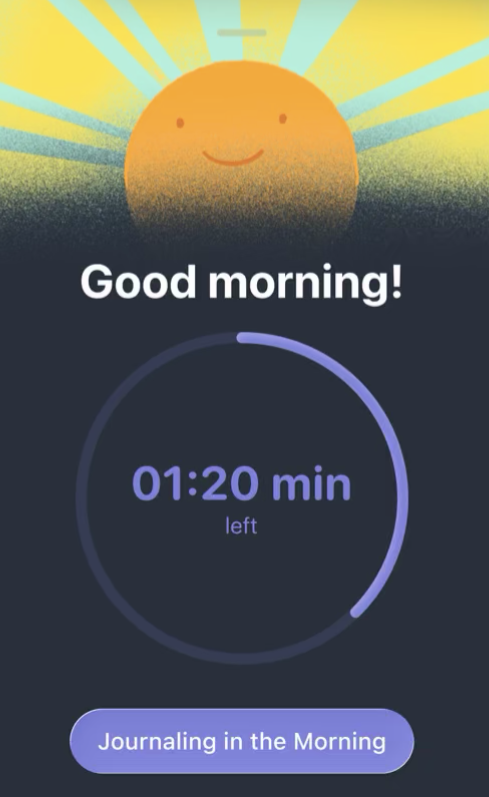
one sec specializes in the moment between tapping an icon and entering an app. Its interventions include breathing, reflection, movement, and intention prompts. That short interruption can make an unconscious habit visible before you are already scrolling.
It also offers full blocking and time limits when a mindful pause is not enough. Mobile apps cover iOS and Android, while browser support extends the approach to desktop distractions. Some of its strongest multi-app and advanced features require Pro.
Pros
- Excellent at interrupting unconscious app opening
- Several thoughtful intervention styles
- Includes mindful pauses and complete blocking
- Works across mobile devices and desktop browsers
Cons
- Initial iPhone setup can feel complicated
- Repeated interventions may become predictable
- Some useful configurations require Pro
- A pause is easier to override than a strict block
Verdict: Choose one sec if you often open social media before you consciously realize what you are doing.
4
Freedom: best cross-platform app blocker
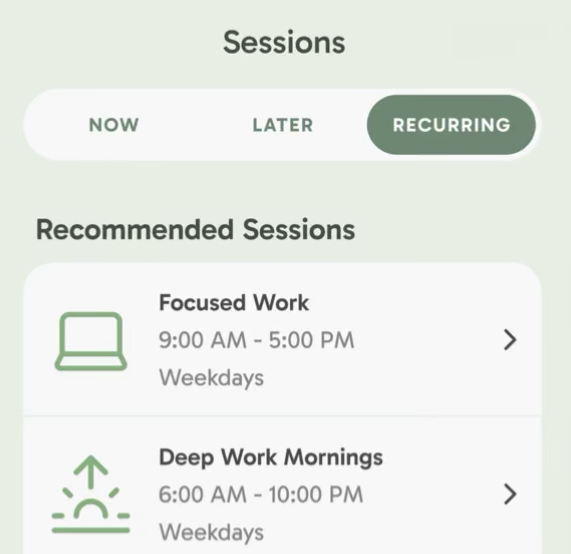
Freedom is designed for distractions that follow you from phone to computer. A single session can block mobile apps, desktop apps, websites, or the whole internet across multiple devices.
Separate blocklists can support writing, studying, focused work, or evenings. The free tier is useful for testing the system, while recurring schedules and stronger Locked Mode controls sit in the Premium plan. Setup varies by platform because each operating system grants blocking permissions differently.
Pros
- Strong multi-device support
- Blocks apps, websites, or the entire internet
- Synchronizes sessions across devices
- Supports different blocklists for different contexts
Cons
- The best automation and enforcement require Premium
- Focuses more on sessions than the habit behind them
- Platform-specific setup can feel fragmented
Verdict: Freedom is the strongest fit for students, writers, developers, and remote workers who need the same focus session on both phone and computer.
5
Jomo: best customizable blocker for iPhone and Mac
Jomo combines strong enforcement with unusually flexible rules on Apple devices. You can schedule blocks, cap daily usage, restrict app openings, or require an action before access returns.
Unlock choices range from a short wait or written reason to a password, deliberately annoying text, or QR code. Strict Mode can prevent active rules from being removed. The flexibility is a real advantage, but learning the available rule types takes time.
Pros
- Wide selection of customizable rules
- Supports schedules, limits, strict locks, and earned access
- Can connect app access with constructive habits
- Strong integration across Apple devices
Cons
- No Android version at the time of writing
- The rule system takes time to learn
- Some advanced features require Jomo Plus
Verdict: Jomo is excellent for Apple users who want precise rules and several levels of unlock difficulty.
6
AppBlock: best for strict schedules and Android control
AppBlock is built for people who know when and where distraction becomes a problem. Profiles can activate by time, day, location, or Wi-Fi network, and supported platforms can block apps, sites, URLs, keywords, notifications, and newly installed apps.
Strict Mode adds cooldowns and approval-based unlocking. Allowlist Mode can turn a phone into a simpler device that exposes only essential apps. Those capabilities require several permissions, particularly on Android, and the full rule set can feel dense.
Pros
- Detailed rules on Android and iOS
- Profiles based on schedule, location, or Wi-Fi
- Strict Mode, cooldowns, and approval-based unlocking
- Allowlist Mode supports a dumbphone-style setup
Cons
- Requires several system permissions
- Advanced settings can feel complicated
- The free plan limits some schedules and strict controls
Verdict: AppBlock is the best match when you want strict, context-aware rules, especially on Android.
7
Opal: best design and focus gamification
Opal is one of the most polished screen-time tools in this group. Focus Rules block selected apps on schedules, while Focus Timers support individual work sessions. Scores, streaks, milestones, and collectible rewards turn focus into a visible game.
The free version is useful for a basic rule and limits. More rules, stronger blocking, Allow Only mode, and deeper historical data require Opal Pro. That makes Opal easy to enjoy, but expensive if you need the strongest version of its system.
Pros
- Excellent visual design
- Clear focus scores, streaks, and progress
- Supports rules, timers, time limits, and open limits
- Available on iPhone, Android, and Mac
Cons
- Pro is expensive compared with many alternatives
- The free version has limited rule capacity
- The strictest enforcement requires Pro
- Android may not match every iOS feature yet
Verdict: Choose Opal if excellent design and gamified progress keep you motivated, and you are comfortable paying for its strongest features.
8
Roots: best for guided digital detox challenges
Roots combines app blocking with screen-time goals, phone-pickup goals, community challenges, and suggested replacements for scrolling. It asks you to think about how individual apps affect you instead of treating every minute of screen time as identical.
Streaks and a Balance Score make progress easy to follow. Monk Mode makes active limits harder to override, but unlimited blocking and the strongest protection require Roots Plus. The broader wellness layer may be more than you need if you only want a simple blocklist.
Pros
- Pairs blocking with positive alternatives
- Includes screen-time and phone-pickup goals
- Guided detox challenges and visible progress
- Monk Mode provides stronger enforcement
Cons
- Currently focused on iPhone
- The free plan limits the number of blockings
- Strong protection requires Roots Plus
- The wellness experience may feel excessive for simple needs
Verdict: Roots is a strong fit if you want a guided digital-detox program rather than only a list of blocked apps.
Which app blocker should you choose?
- ScreenZen: the best free all-rounder.
- Marshmallows: for training willpower instead of depending on hard blocks.
- one sec: for unconscious, automatic app opening.
- Freedom: when distractions move between phone and computer.
- Jomo: for deeply customizable Apple-device rules.
- AppBlock: for strict schedules and Android control.
- Opal: when polished design keeps you motivated.
- Roots: for a guided phone-detox experience.
Try the built-in controls first
Apple Screen Time and Android Digital Wellbeing may be enough if you only need a basic daily limit or scheduled downtime. A third-party tool becomes more valuable when you need better interventions, stronger enforcement, cross-device blocking, or a system that makes progress more motivating.
The right app is the one whose friction matches your actual problem. If you ignore warnings, choose a stricter blocker. If you open apps without noticing, choose an intervention. If you always find a way around the wall, try training the pause itself.
For the complete reasoning behind that last approach, read why screen blockers and time limits never fixed my phone use.